StageLight App
StageLight — The Smart Lighting Control App. For iPad / for macOS.

Wireless
Thanks to the wireless connection, you can work flexibly and aren’t tied to one spot. This lets you make changes during the show or react spontaneously.
The StageLight app is the perfect solution for anyone who wants to control their lighting simply and quickly from an iPad. By using the JMS AIR2DMX Wi-Fi interface together with the Art-Net IP protocol, you can drive your lighting fixtures effortlessly and create the perfect atmosphere for your events.
What makes the StageLight app special is its connection to the JMS AIR2DMX Wi-Fi interface via the Art-Net IP protocol. This ensures fast, reliable transmission of your commands, without having to worry about cable clutter.
StageLight: the StageLight app lets users enjoy intuitive, powerful lighting control on the iPad. With the JMS AIR2DMX Wi-Fi interface, users can create and control DMX lighting effects via the Art-Net IP protocol (DMX512 over IP). The intuitive workflow with realistic graphics lets you build lighting scenes in real time and update them with a tap.
The Software
The software has a range of expandable features, such as the timeline function, which lets you build and control scenes based on predefined points in time. The app also supports multiple networks, audio sync, and a schedule mode for planning and timing show sequences. With this smartphone app, anyone can design and adjust professional light shows — whether you’re a DJ at your party or a stage technician at your theater! It combines the feel of a classic lighting desk with a modern, intuitive design.
The Interface
Stands out through smart use of available screen space combined with maximum flexibility. The StageLight app is the perfect DMX control software for anyone who wants to take their light show to the next level. With this easy-to-use iPad app, you can control and adjust your lighting effects with ease.
The StageLight app offers you plenty of benefits: you can design your light show to fit your needs. The intuitive interface lets you switch between different effects quickly and easily, or adjust them.
10 Universes
Manage and control devices and groups across up to 10 DMX universes.
MIDI Control
Connect a MIDI controller and turn StageLight into a hardware lighting desk, or sync cue lists with your favorite DAW.
Control Channels
The StageLight app works fixture-based. You can assign a single device, a group, or a cue list to one of these channels across up to 200 pages.
Import and Export
Export and import projects or custom fixtures. Use any sharing app (e.g. iCloud, Dropbox, AirDrop...) to share projects with friends or colleagues, or between different iPads.
Cues and Cue Lists
Record cues and play them back in cue lists as a sequence or as a chase. Various trigger and sync options are supported (e.g. Global BPM, Ableton Link, MIDI Clock).
Ableton Link
Ableton Link is a technology that syncs the beat, phase, and tempo of Ableton Live and other Link-enabled apps (DAWs) over the network. In StageLight, Ableton Link is used to sync the tempo of the chase.
CITP
StageLight uses the Controller Interface Transport Protocol (CITP) to record cues, retrieve thumbnails, and select devices in Capture.
OSC
In StageLight, you can use the Open Sound Control (OSC) protocol to control supported devices with OSC commands.
The Tip
With the StageLight app, you have everything under control and can run your light show like a pro. Give it a try and see how easy it can be to create impressive effects!
Downloads
StageLight App – iPad / macOS
iPad requires iPadOS 14.0 or later.
Mac requires macOS 11.0 (or later) and a Mac with an Apple M1 chip (or later).
User manual – iPad / macOS
Language: English
Provider: Marko Seifert
Languages: German, English, Russian
Developer website: StageLight App
Copyright © Marko Seifert
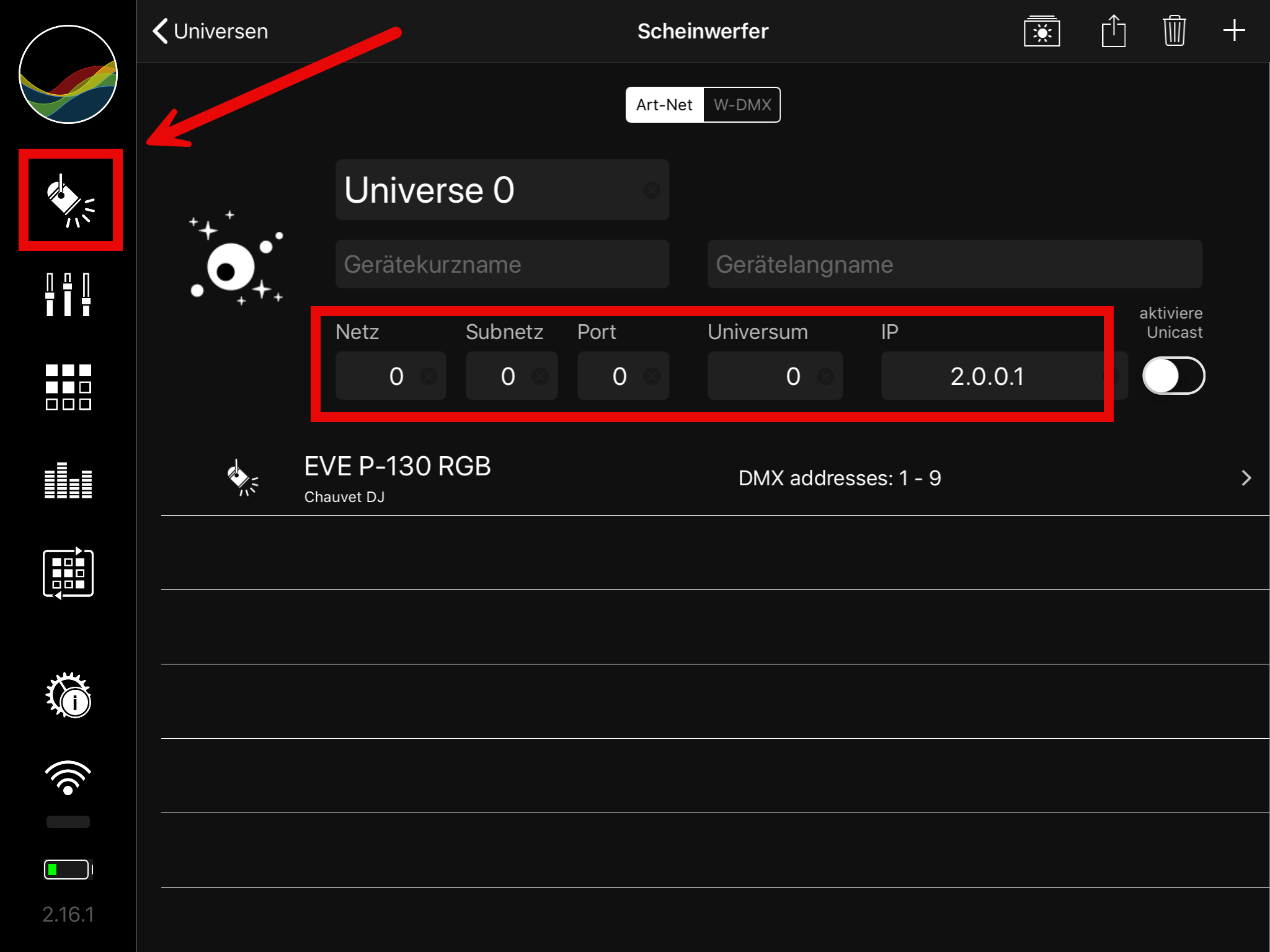
What settings do I need in the StageLight app for the AIR2DMX interface?
To get to the interface/fixture setup, tap the fixture on the left side. Set Net / Subnet / Port / Universe to 0. In Hotspot Mode, enter the IP address 2.0.0.1.
In Router Mode, enter your router’s IP address (e.g. 192.168.2.1).
Unicast must be disabled.